
Introduction: The 10 PM Mastery Streak Meltdown
It is 10:30 PM on a Tuesday. You are sitting at the kitchen table, four problems deep into a five-problem DeltaMath mastery streak, or fighting to finish the last slice of your weekly ALEKS Pie goal. You do ten lines of algebra on scratch paper, type your answer into the box, hit submit, and watch the screen flash red because of a single negative sign error or a missing parenthesis. Instantly, your penalty counter deducts a point, your streak drops backward, and a 20-minute homework assignment turns into a two-hour late-night meltdown.
In that moment of sheer exhaustion, it is easy to see why students search for a deltamath ai solver with screenshot capabilities or an aleks math homework solver app. According to a nationally representative RAND report, the share of middle school, high school and college students using AI for homework rose from 48% in May 2025 to 62% in December 2025, even as 67% of students agreed that using AI for schoolwork harms critical thinking.
Worse yet, viral social media ads push Chrome extension auto-solvers like SkipDelta and FastSolve as an easy escape. What those ads never mention is that browser extensions inject scripts directly into your webpage and leave per-problem timestamps that teachers can review in their data view.
There is a much safer, smarter way to get unstuck. By using a mobile-first step by step deltamath solver and AI tutor like Tutor AI on a separate smartphone, you can snap a photo of your laptop screen, understand the exact mathematical logic at your own pace, and protect your mastery streak. Always check your teacher's policy on using AI tools for homework.
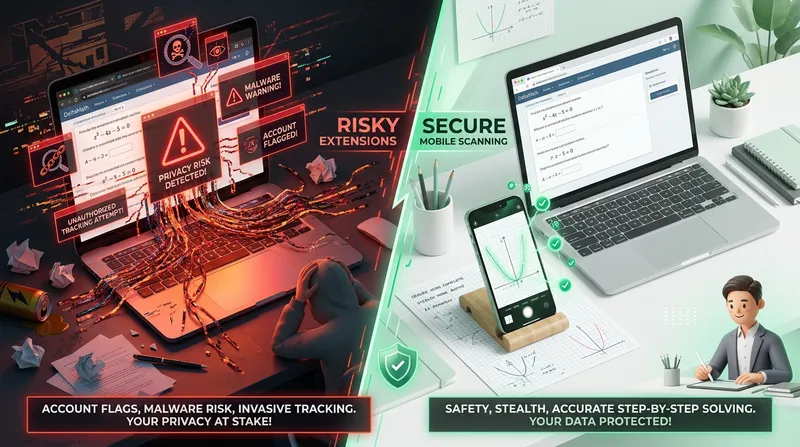
Why Chrome Extension Auto-Solvers (Like SkipDelta & FastSolve) Are a Trap
When students ask can deltamath detect extensions or wonder if a fastsolve deltamath extension safe claim is actually true, they are usually thinking about webcam proctoring. Because DeltaMath and ALEKS homework assignments rarely turn on your camera at home, extension developers claim their tools are "100% invisible." Technically speaking, that is a massive trap.
Browser extension auto-solvers do not just look at your screen from the outside. To read the math problem and automatically type the answer into the submission box, the extension must inject JavaScript code directly into the webpage's Document Object Model (DOM). If you are searching for a reliable skipdelta alternative, you first need to understand how easily school IT networks catch browser-level tampering.
DOM Injection vs. School Chromebook Monitoring
Most middle and high school students either use a school-issued Chromebook or sign into their school Google Workspace profile on a personal laptop at home. School IT departments can use the Google Admin Console and classroom monitoring tools such as GoGuardian, Lightspeed and Hapara to manage which extensions are allowed and to monitor browser activity on managed devices and accounts.
When you install an unverified third-party solver extension into Chrome, two dangerous things happen:
- Extension Inventory Logs: Even if you are on your home Wi-Fi, logging into your
.eduor school Google Chrome profile syncs your extension list with the district's admin console. - DOM Conflict & Script Flags: Enterprise security tools sit inside the exact same browser environment. When an auto-solver modifies the webpage code or simulates unnatural keyboard input events to paste an equation in milliseconds, school filtering software can flag the unauthorized script immediately.
Actionable Step: Run a 60-Second Browser Safety Audit Tonight
- Open Google Chrome on your homework laptop and type
chrome://extensionsinto the address bar. - Remove any third-party "homework helper," "auto-clicker," or "quiz solver" extensions that request permission to "Read and change all your data on all websites."
- Click your profile icon in the top-right corner of Chrome. If your school email is synced to your personal browser, keep your browser completely clean of third-party scripts and keep your study tools on a separate mobile device.
The 3-Second Solve Flag: What Teachers Actually See on Their Dashboards
Even if you use a personal laptop with zero school monitoring software installed, browser extensions still leave an obvious trail. Why? Because mastery platforms do not need to scan your hard drive when they can simply read your behavioral telemetry.
Understanding deltamath teacher analytics flags and can aleks detect cheating patterns comes down to one simple metric: human problem-solving speed versus bot speed. Learning how to use AI ethically is about supporting your brain rather than bypassing it, a principle we also explore in our guide on how to use an AI English solver for homework help without cheating.
Inside DeltaMath Teacher Analytics
When a teacher clicks on your name inside DeltaMath, they do not just see a final percentage score. According to official DeltaMath documentation, DeltaMath's student data view records a granular, problem-by-problem history that includes:
- Per-Problem Timestamps and Time Estimates: Teachers can see when each problem was worked on and an estimated time spent. On PLUS/INTEGRAL accounts, video time is excluded, and if a student spends more than 10 minutes on a question, DeltaMath shows its historical average time for that question type instead.
- Attempt Sequences: Teachers see every incorrect entry alongside the time gap between tries.
- The Auto-Solver Red Flag: When several multi-step problems are submitted only seconds apart, the timestamps in the teacher's data view look nothing like normal human work.
How ALEKS Insights Flags 'Unusual Learning' Spikes
ALEKS goes even further than passive timestamp logs. According to official documentation from McGraw Hill ALEKS, the platform utilizes a patented machine learning system called ALEKS Insights (U.S. Patent No. 10,713,965) that actively monitors student telemetry in the background.
ALEKS Insights alerts teachers to four patterns: Failed Topics (updated in real time) plus Decreased Learning, Procrastination and Unusual Learning (checked weekly). An Unusual Learning alert appears when a student's learning rate rises significantly compared with their usual pace.
Actionable Step: Follow the Natural Pacing Checklist To keep your pacing natural and ensure the math actually sticks in your working memory:
- Take the time to work through multi-step math problems carefully.
- Write down the initial problem and at least two intermediate algebraic steps on physical scratch paper. Many math teachers require you to turn in numbered scratch paper alongside your DeltaMath or ALEKS completion grade, and matching your written work to your online timestamps is the ultimate proof of honest effort.
The 'Knowledge Check Collapse': How Auto-Solvers Backfire on ALEKS and Exams
Even if a teacher never checks their email alerts, using an answer-bot on ALEKS guarantees a painful phenomenon students call the "Knowledge Check Collapse." Searching for aleks knowledge check ai help after using an extension all week usually means you are about to lose hours of progress.
Here is the scientific reason why: ALEKS is built on Knowledge Space Theory (KST), which maps a math course into hundreds of interdependent concepts with millions of feasible knowledge states. The algorithm constantly tests the "outer fringe" of what you know.
Furthermore, adding a topic to your ALEKS Pie is a strict two-step process:
- Learned (Light Pie Slice): When you solve several practice problems in Homework/Learning Mode, the topic is only marked as Learned.
- Mastered (Dark Pie Slice): Periodically, based on your progress and your instructor's settings, ALEKS gives you an adaptive Knowledge Check of up to 30 questions.
If you used a browser auto-solver to breeze through topics on Sunday night without understanding the steps, you will likely fail those exact concepts during the next in-class Knowledge Check. Because Knowledge Checks retest what you have learned, topics you can't answer without help are taken out of your pie and sent back to your learning path, forcing you to redo homework from scratch.
This is the core difference between passive answer-copying and real mastery, which we break down in detail in our comparison of a scanner math solver vs. an AI tutor with step-by-step explanations.
Actionable Step: Keep a 'Fringe Topic Notebook' for Knowledge Checks Every time you finish a new topic in ALEKS Learning Mode, write the topic title at the top of an index card or notebook page along with one fully worked example in your own handwriting. Before starting a Knowledge Check, spend five minutes reviewing the last 10 topics you learned so you never lose your pie slices.
Why Mobile Photo Scanners Beat Browser Extensions (Comparison Table)
When you need a mobile math scanner for laptop screen problems or an ai math tutor for aleks and webassign, keeping your study tool on your smartphone means nothing touches your laptop's browser and nothing injects code into the DOM, so your homework platform only records the work you actually do.
Even better, a study by Common Sense Media reported by KQED found that while 7 in 10 teenagers use AI for schoolwork, nearly 4 in 10 feel like they are missing out on learning when they use AI to complete assignments. Choosing a tool built for step-by-step teaching addresses both the browser-script issue and the learning gap. You can see how different platforms stack up in our roundup of the 7 best AI tutoring apps that give step-by-step explanations.
Here is how the three most common homework approaches compare on mastery-based platforms:
| Feature / Risk Factor | Chrome Auto-Solver Extensions | Legacy Search & Q&A Sites | Mobile AI Photo Tutor (Tutor AI) |
|---|---|---|---|
| Browser DOM Footprint | High Risk (Injects scripts directly into page code) | Medium Risk (Requires constant tab-switching & copy-pasting) | Zero Footprint (Runs independently on your phone camera) |
| Teacher Timestamp Logs | Flags Immediately (Logs impossible 2-to-5 second solves) | Erratic (Long idle gaps followed by instant paste) | Time reflects your own work as you read steps and write them out |
| Randomized Numbers | Scrapes current screen only | Fails (Archives only have old problems with different numbers) | Solves Your Exact Numbers via instant optical character recognition |
| Text & Math Notation | Often breaks on complex formatting | Cannot easily search equations via text bar | Reads printed and handwritten text and math notation |
| Formatting & Syntax Help | Often pastes raw text that breaks MathQuill boxes | Inconsistent user-submitted notation | Clear Mathematical Notation (Shows exact fractions, radicals, & intervals) |
| ALEKS Knowledge Check Retention | Near Zero (Causes pie collapse on next check) | Low (Encourages memorizing formulas without context) | High Retention (Step-by-step logic + adaptive practice) |
The 4-Step 'Safe Mastery' Workflow for DeltaMath, ALEKS, and WebAssign
According to Pew Research Center data shared by the California School Boards Association, 54% of U.S. teens have used AI chatbots to get help with schoolwork, and among teens who used chatbots, 43% used them to help solve a math problem.
If you are wondering how to get help on deltamath without cheating while protecting your hard-earned streak, follow this four-step workflow tonight. This exact method works across DeltaMath, ALEKS, and even college-level WebAssign modules (which are notorious for strict significant-figure rules, much like the multi-step calculations we cover in our AP Physics 1 & C exam practice guide).
Step 1: Set Up the 'First-Line Mistake Check' on Scratch Paper
Before you touch your phone, copy the randomized problem from your laptop screen onto physical scratch paper and attempt the first step yourself. Many broken DeltaMath streaks happen in line one because a student misread an exponent or copied a - as a +. Writing the problem down anchors your brain in the math.
Step 2: Snap the Laptop Screen with Your Phone Using Tutor AI
If you hit a wall or want to verify your work before risking a streak reset, open Tutor AI on your iOS or Android phone.
- Pro Tip for Scanning Laptop Screens: Hold your phone 6 to 8 inches away from the laptop display and tilt the phone at a slight 10-to-15 degree angle. This eliminates screen glare and stops the camera sensor from picking up wavy pixel grid lines (known as moire patterns).
- Crop the frame tightly around the equation or word problem, including the instruction line (for example, "Express your answer in simplest radical form").
Step 3: Audit the Step-by-Step Logic (Don't Skip to the Bottom)
Within seconds, Tutor AI parses the mathematical notation and breaks the solution down into logical, bite-sized steps. Instead of jumping straight to the final number, compare Tutor AI's Step 1 and Step 2 against your scratch paper.
- Did you forget to flip the inequality sign when dividing by a negative?
- Did you factor the quadratic correctly, or did you miss a Greatest Common Factor (GCF) at the start?
- Write the corrected middle steps onto your scratch paper. Working through the steps by hand takes real study time and trains your brain on the exact method.
Step 4: Format Properly and Practice Related Problems for Streak Protection
Before clicking Submit on your laptop, double-check the platform's syntax rules:
- In DeltaMath: Make sure your cursor exits the denominator or radical inside the MathQuill answer box before typing the next term, and check whether the prompt asked for an exact fraction (like
7/3) rather than a rounded decimal (2.33). - In ALEKS & WebAssign: Check the required rounding place (tenths vs. hundredths) or significant figures.
- Need extra deltamath mastery streak help? If the concept felt shaky, try one of Tutor AI's personalized practice recommendations on the same topic before going back to your streak.
A Parent's Guide: Helping Your Teen Outsmart Streak Anxiety at Home
While students are on the front lines of these assignments, parents often end up right beside them at the kitchen table when frustration sets in. If you are a parent trying to support a frustrated student through late-night math homework, watching your middle or high schooler melt down over an online math portal at 9:30 PM is exhausting. Most parents have not solved a trigonometric identity, logarithmic equation, or piecewise function in twenty years-and built-in platform hints often show dense textbook walls of text only after your child has already lost a point.
You do not need to be a calculus expert to help your teen succeed on DeltaMath or ALEKS. Instead, you can partner with them using a simple family routine alongside Tutor AI's progress tracking features:
- Use the 'Show Me Step Two' Rule: When your teen uses Tutor AI to scan a tough problem on their laptop, ask them to cover the final answer with their thumb and explain Step 2 out loud to you in plain English. Teaching a step aloud forces active recall and immediately reveals whether they truly understand the rule.
- Separate the Error Type: Help your teen distinguish between a concept error (not knowing which formula to use) and a careless platform error (typing a comma instead of a period). We use this exact error-journaling technique in our guide on how to review mistakes on free printable ACT tests.
- Check Progress Without Hovering: With Tutor AI's parent progress reports (the parent dashboard is a Premium feature), you can see which math topics your child is practicing during the week-turning stressful late-night homework battles into calm, independent study sessions.
Conclusion: Protect Your Streak and Your Future Exam Score
Whether you are a student working through a tough assignment or a parent helping from across the table, the takeaway is simple: browser extension auto-solvers promise a quick shortcut at 10 PM, but they gamble with your academic record, leave suspicious timestamps in teacher data views, and set you up for a painful collapse on your next ALEKS Knowledge Check or in-class test. You do not need to risk your grade-or suffer through a broken DeltaMath mastery streak alone-to get your homework done on time.
By switching to a mobile AI tutor on your phone, you keep your browser completely clean while getting the step-by-step clarity you need to solve the problem yourself.
Ready to end late-night math stress for good? Experience the "Snap. Solve. Learn." difference tonight-download Tutor AI for free on the iOS App Store or Google Play Store, or learn more at tutoraisolver.com.
Note: Every student learns differently. While these strategies are research-backed, results may vary. Adapt these techniques to fit your unique learning style and circumstances, and always follow your teacher's policy on using AI tools for homework.
Frequently Asked Questions
Can DeltaMath detect Chrome extensions or tab switching?
DeltaMath's website cannot look inside your private computer files, but Chrome extension auto-solvers inject code directly into the webpage's DOM. On school-managed Chromebooks or synced school Google accounts, IT tools like GoGuardian can manage and monitor installed extensions. Furthermore, auto-solvers submit complex problems only seconds apart, leaving obvious timestamps in your teacher's DeltaMath data view.
How does ALEKS detect cheating patterns during homework and Knowledge Checks?
ALEKS uses a patented tool called ALEKS Insights (U.S. Patent No. 10,713,965) that checks weekly whether a student's learning rate has risen significantly compared with their usual pace. If so, it alerts the teacher with an Unusual Learning insight.
Why did I lose topics on my ALEKS Pie after a Knowledge Check?
In ALEKS, finishing homework problems only marks a topic as "Learned." To convert those slices into "Mastered" credit, you must solve unassisted problems during periodic adaptive Knowledge Checks. If you used an auto-solver without learning the underlying steps, topics you cannot answer without help on the Knowledge Check are taken out of your pie and sent back to your learning path.
What is the safest SkipDelta or FastSolve alternative for DeltaMath?
The safest alternative is using an external, mobile-first AI tutor like Tutor AI on your smartphone. Because you simply snap a picture of your laptop screen with your phone camera, zero software is installed in your web browser. You receive clear, step-by-step explanations so you can write out your scratch work and build real understanding. Always check your teacher's policy on using AI tools for homework.
How do I scan a laptop screen with a mobile math solver without glare?
For a crystal-clear scan every time, set your laptop screen brightness to around 70%, hold your smartphone 6 to 8 inches away from the monitor, and tilt your phone at a slight 10-to-15 degree angle. This simple tilt removes overhead room glare and prevents wavy digital moire lines so Tutor AI's optical character recognition can read equations and math notation within seconds.